
DPI sets how far your cursor moves when you move the mouse. Polling rate sets how often the mouse reports that movement to your PC. In the DPI vs polling rate question, neither number on the box makes you aim better.
A 26,000 DPI rating is mostly marketing; most CS2 pros play at 400-1600 DPI. A 1000Hz polling rate is enough for most setups, and 4000-8000Hz only helps on a strong PC with a high refresh rate monitor.
Key takeaway
- DPI: pick 400, 800 or 1600 and tune your feel with in-game sensitivity. Max DPI above that rarely matters.
- Polling rate: 1000Hz (a report every 1 ms) is the sensible default. Try 2000-4000Hz only if your PC and monitor can keep up.
- eDPI: DPI multiplied by in-game sensitivity. This is the number to compare with other players, not DPI alone.
- What matters more: a mouse shape that fits your hand, a consistent sensor, no Windows acceleration, and a monitor fast enough to show the difference.
DPI vs polling rate at a glance
| Setting | What it controls | Typical range | Sensible default |
|---|---|---|---|
| DPI (CPI) | Cursor distance per inch of mouse movement | 100 to 30,000+ | 400, 800 or 1600 |
| Polling rate | How often the mouse reports to the PC | 125Hz to 8000Hz | 1000Hz |
| In-game sensitivity | A multiplier the game applies on top of DPI | Varies by game | Whatever gives you a comfortable 180° turn |
| eDPI | DPI × in-game sensitivity | Compare within one game | Match your aim style, not a pro’s number |
What DPI does on a gaming mouse
DPI (dots per inch, also called CPI) is how many movement counts the sensor sends per inch of travel. At 800 DPI, moving the mouse one inch sends 800 counts. At 1600 DPI, the same inch sends 1600, so the cursor travels twice as far.
In a game, DPI works together with the in-game sensitivity. 800 DPI at sensitivity 1.0 feels the same as 400 DPI at 2.0. That is why players compare eDPI (DPI × sensitivity) instead of raw DPI.
Why 26,000 DPI is a spec-sheet number
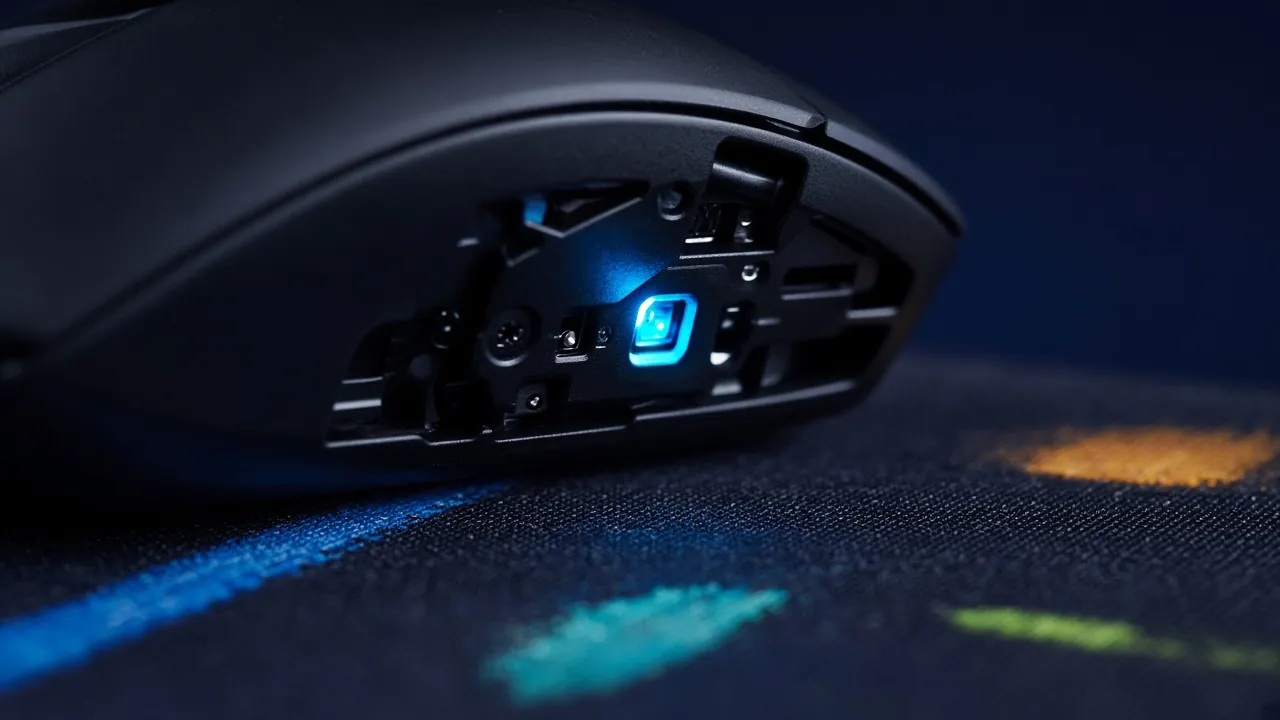
Modern optical sensors track cleanly at the low DPI players use, so a higher ceiling adds little for gaming. At 26,000 DPI a tiny hand twitch would fling the cursor across the screen, so nobody games there.
The pro data backs this up. ProSettings.net tracks the gear and settings of 964 professional CS2 players, and its CS2 settings guide shows 66% use 400 DPI, 28% use 800 DPI and 5% use 1600 DPI. Their median eDPI is 830, about 800 DPI at a sensitivity just over 1.
Higher DPI does help in two places: moving around a 1440p or 4K desktop without big arm swings, and some games or apps that set their own cursor speed. For those, 1600 DPI with a lower in-game sensitivity is a sensible middle ground.
💡 Expert tip: keep your mouse software’s DPI steps at 400, 800 and 1600 only. Then lock one in for gaming and change the in-game sensitivity instead. That way you never lose your aim by bumping the DPI button mid-match.
What polling rate does
Polling rate (or report rate) is how often the mouse sends its position and clicks to the PC. A 125Hz office mouse reports every 8 ms. A 1000Hz gaming mouse reports every 1 ms. Razer’s HyperPolling page puts 8000Hz at one report every 0.125 ms.
| Polling rate | Time between reports | Who it suits |
|---|---|---|
| 125Hz | 8 ms | Office work only |
| 500Hz | 2 ms | Casual gaming, older wireless mice |
| 1000Hz | 1 ms | Most gamers, including competitive play |
| 2000-4000Hz | 0.5-0.25 ms | Competitive players on 240Hz+ monitors and strong CPUs |
| 8000Hz | 0.125 ms | Enthusiasts who have checked their games and PC handle it |
Going from 125Hz to 1000Hz cuts up to 7 ms of delay, which you can feel. Going from 1000Hz to 8000Hz cuts at most 0.875 ms. The extra reports mainly make tracking smoother on a very high refresh rate screen.
When 4000Hz or 8000Hz polling is worth it
Each report needs CPU time to process. There are no official system requirements, but ProSettings suggests at least a Core i5-8600K or Ryzen 5 3600-class CPU and a 240Hz monitor for 4000Hz and above. On weaker PCs, very high rates can cause stutter in some games, which undoes the gain.
Best for: competitive FPS players with a fast desktop CPU and a 240Hz esports monitor.
Not ideal for: 60Hz or 144Hz screens, budget laptops, and wireless mice where battery life matters more. On a 60Hz screen, 1000Hz already delivers far more updates than the monitor can show.
Watch out for: games that stutter or feel uneven after you raise polling. Drop back to 2000Hz or 1000Hz before blaming the mouse.
⚠️ Watch out for: the pointer precision checkbox in Windows mouse settings adds acceleration, so the same hand movement gives different cursor distances. Logitech’s support note on inconsistent DPI recommends unticking it: Control Panel > Hardware and Sound > Mouse > Pointer Options, under Motion.
Gaming mouse settings that matter more
- Shape and weight: a mouse that fits your grip changes your aim more than any spec on the box.
- Your monitor: smoother mouse input only shows on a fast screen. Our guide to refresh rate vs response time explains which number to buy for.
- Your connection: a 1 ms mouse does not fix 60 ms of network lag. See how to reduce ping for the bigger win in online games.
- Your keyboard: keyboards have polling rates and actuation points too. Our mechanical switches explainer covers how switch type affects speed.
- Lift-off distance: if your cursor drifts when you lift and reset the mouse, set a lower lift-off distance in the mouse software, if it offers one.
Common mistakes
- Buying a mouse for its max DPI. Almost every gaming sensor today does 400-1600 DPI cleanly.
- Copying a pro’s DPI but not their sensitivity. Copy the eDPI, and only as a starting point.
- Changing DPI and sensitivity together. Change one thing at a time and give it a few days.
- Running 8000Hz on a laptop on battery. Power-saving modes slow the CPU, and the extra reports can cause stutter.
- Forgetting the keyboard. For fast games, rapid trigger keyboards for competitive gaming can matter as much as the mouse.
What to buy
You do not need an expensive mouse to get the settings that matter. A 1000Hz polling rate and a sensor that tracks cleanly at 800-1600 DPI are standard even at budget prices. Our best gaming mouse under ₹1,000 guide lists picks with their DPI and polling specs and Indian prices. Pay more for shape, weight and wireless, not for a bigger DPI number.
How we researched this
This explainer is research-based. We used ProSettings.net’s CS2 pro settings data, Razer’s HyperPolling documentation and Logitech G support notes, and worked out report intervals from the polling rates. We have not run our own latency tests for this guide. Last checked: November 2026.
Frequently asked questions
DPI vs polling rate: which matters more for gaming?
Neither is a big deal once you hit the basics. Any gaming mouse that tracks cleanly at 400-1600 DPI and polls at 1000Hz covers almost everyone. After that, shape, weight, your in-game sensitivity and your monitor matter more than either spec.
What DPI should I use for FPS games?
Start at 800 DPI and set your in-game sensitivity so a comfortable arm movement turns you 180 degrees. Most CS2 pros tracked by ProSettings.net use 400 or 800 DPI. Fine-tune the in-game sensitivity rather than the DPI once you have picked a step.
Is higher DPI better?
No. Higher DPI only makes the cursor move further per inch of hand movement. You can get the same feel with lower DPI and higher in-game sensitivity. Very high DPI values like 26,000 make the cursor twitchy and are mostly used as a spec-sheet selling point.
Is 1000Hz polling rate enough?
Yes, for most players. 1000Hz means one report every millisecond, which is far more updates than a 60Hz or 144Hz monitor can show. Higher rates can feel slightly smoother on 240Hz or faster screens with a strong CPU, but the gain is small.
Does 8000Hz polling rate affect FPS or CPU usage?
It can. The PC has to process eight times more reports than at 1000Hz, which uses more CPU time. On a strong desktop it is fine. On older CPUs or laptops it can cause stutter or frame drops in some games, so test before keeping it.
What is eDPI and how do I calculate it?
eDPI is your mouse DPI multiplied by your in-game sensitivity. For example, 800 DPI at sensitivity 1.5 gives an eDPI of 1200. It lets you compare aim speed with other players in the same game, whatever DPI each person uses.
Does polling rate drain a wireless mouse battery faster?
Generally yes. Sending more reports per second keeps the mouse radio busier, so battery life drops at 2000Hz and above. If battery life matters more than tiny latency gains, keep a wireless mouse at 1000Hz and charge it less often.
Should I turn off mouse acceleration in Windows?
Yes, for gaming. In Windows it is the pointer precision checkbox under Pointer Options. It changes how far the cursor moves based on how fast you move the mouse, which makes aim less consistent. Untick it and use your DPI and sensitivity instead.
Our verdict
For the DPI vs polling rate decision, set 800 or 1600 DPI, 1000Hz polling, turn off Windows acceleration, and tune feel with in-game sensitivity. That covers almost every player, on a ₹600 mouse or a ₹15,000 one.
Try 4000Hz or 8000Hz only if you have a 240Hz+ monitor and a strong CPU, and drop back the moment a game stutters. Before you spend money on a mouse for its specs, check that it fits your hand; that is the part buyers regret skipping.