
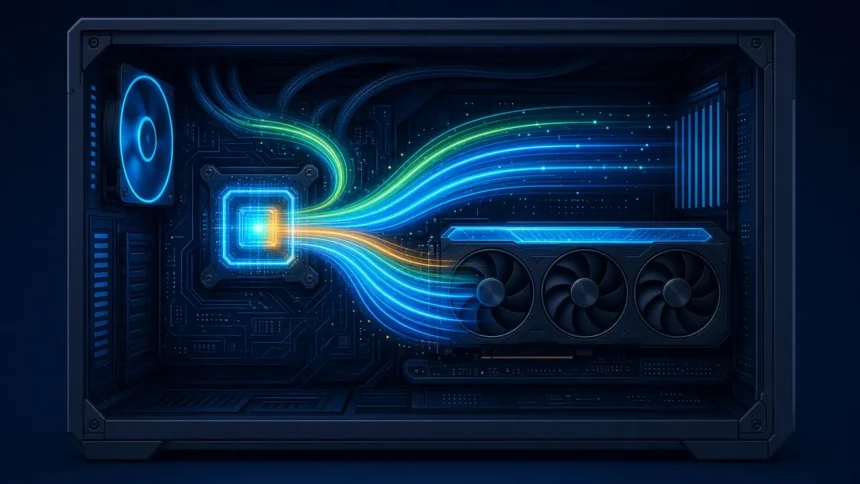
A CPU bottleneck happens when your processor can’t prepare frames fast enough to keep the graphics card busy. The GPU sits idle for part of every frame, and buying a faster card barely raises your frame rate.
To check, remove any FPS cap, play the game that feels slow and watch GPU utilisation and frame times. If the GPU stays well under full load while the frame rate stalls, the CPU is the limit.
Key takeaway
- Every PC has a bottleneck. One part always sets the frame rate. The question is whether it’s the part you expected, in the games you play.
- Skip bottleneck calculators. They give one percentage for a CPU and GPU pair. Real limits change with the game, resolution and settings.
- The quick test: uncap the frame rate, then watch GPU utilisation. Near full load means GPU-bound. Well below it, with the frame rate stuck, points at the CPU.
- The precise test: Intel PresentMon is free and compares GPU Busy time with total frame time, frame by frame.
What a CPU bottleneck is
Each frame in a game is a relay. The CPU runs the game logic, physics, AI and audio, then sends the GPU a list of things to draw. The GPU renders that frame and sends it to your monitor. Whichever side takes longer sets your frame rate.
When the CPU is the slow side, the GPU finishes early and waits. Intel’s game profiling guide describes a CPU-bound game as high CPU utilisation with low GPU utilisation. A GPU-bound game is the reverse, with the GPU above 95% and the CPU relatively idle.
Being GPU-bound is the normal, healthy state for a gaming PC. The graphics card is usually the most expensive part, so you want it doing the work. A CPU limit is only a problem when it holds the frame rate below what you want.
Why bottleneck calculators get it wrong
Bottleneck calculator sites ask for a CPU, a GPU and sometimes a resolution, then print a figure like “12% CPU bottleneck”. We’d ignore that number. It can’t know which game you play, which settings you use or what refresh rate you are chasing.
- Games load the CPU very differently. A linear shooter can run happily on an older six-core chip. A city builder, a strategy game late in a match or a crowded open-world town can choke a much newer one.
- Resolution moves the limit. The CPU’s work per frame barely changes with resolution, but the GPU’s work grows with every pixel. The same pair can be CPU-bound at 1080p and GPU-bound at 4K. Our 1080p vs 1440p vs 4K gaming guide shows how much harder each step is on the GPU.
- Your target matters. A CPU that delivers a smooth 60 fps may be the limit if you want 144 fps or more on a high refresh monitor.
- One number hides stutter. A PC can average a high frame rate and still hitch when the CPU falls behind in busy scenes.
Real measurements on your own PC beat any calculator, and the tools are free.
How to check for a CPU bottleneck in 5 steps
Run each check in the game and scene that feels slow, not a menu or an empty area. Play for a few minutes so clocks and temperatures settle.
Step 1: remove frame rate limits
Turn off V-Sync, any in-game FPS cap and driver frame limiters for the test. A cap leaves the GPU idle on purpose, which looks like a CPU limit when it isn’t one. Turn off frame generation too, so you measure frames the game renders. On a laptop, plug in the charger and use the performance power mode.
Step 2: watch GPU utilisation
Open an overlay while you play. The Windows Game Bar (Win + G) has a performance widget showing CPU, GPU, VRAM and RAM use. MSI Afterburner with RivaTuner, or the overlays in the NVIDIA and AMD apps, show the same numbers in game.
- GPU at 95% to 100%: the graphics card is the limit. The CPU is keeping up.
- GPU well below that, frame rate below your target: something is starving the GPU, most often the CPU.
- GPU low, frame rate at your cap: nothing is wrong. Your PC is idling because it already hits the target.
Step 3: check per-core CPU load, not the total
Total CPU usage is the most misleading number here. Many games lean on one or two main threads. One core can sit at its limit while the total reads 40%, and that core is the bottleneck.
In Task Manager, open Performance, select CPU, right-click the graph and choose Change graph to > Logical processors. Look for one or two lines pinned near the top while the rest idle. Our explainer on CPU cores vs threads covers why extra cores don’t rescue a game that leans on one thread.
Step 4: read frame times with PresentMon
Intel PresentMon is a free overlay and capture tool. Intel says it works on Windows 10 and 11 with DirectX 9, 11 and 12, OpenGL and Vulkan, and with non-Intel graphics cards. It shows two numbers that make the call clearer than utilisation alone.
| Metric | What PresentMon measures | How to use it |
|---|---|---|
| Frame Time | Total time between frames on the CPU | The time each frame takes. 16.7 ms is 60 fps; 6.9 ms is 144 fps. |
| GPU Busy | How long the GPU spent working on that frame | Compare it with Frame Time. |
| GPU Wait | How long the GPU waited while working on the frame | Large values mean the GPU is idling. |
| GPU Power / Temperature Limited | GPU clocks held back by power or heat limits | Rules out throttling before you blame the CPU. |
If GPU Busy is close to Frame Time, the GPU works for almost the whole frame, so it is the limit. If GPU Busy is much shorter, the GPU is waiting on something else for part of each frame.
As an illustration only, a 10 ms frame with 6 ms of GPU Busy means the GPU waits for about 40% of the frame.
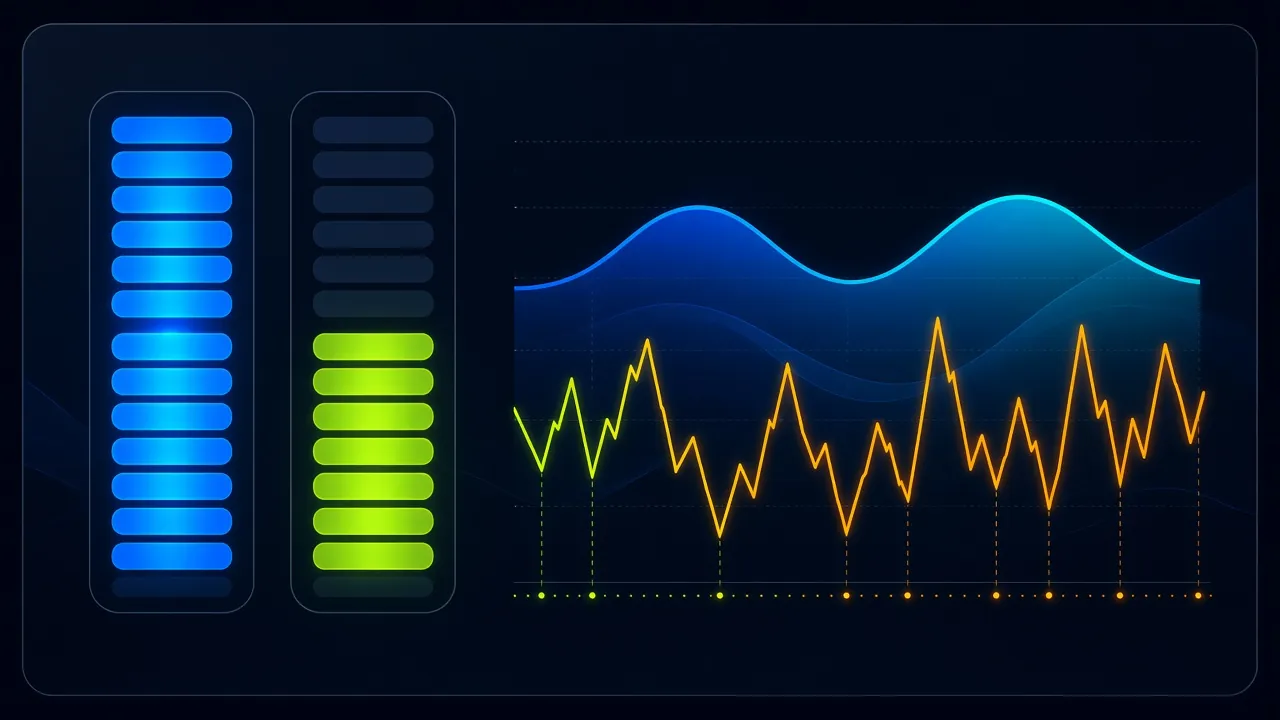
Watch the frame-time graph as well as the average. A flat line feels smooth. Sharp spikes feel like stutter, and spikes that line up with busy moments, such as explosions, crowds or fast travel through a city, often point at the CPU.
Step 5: run the resolution test
Drop the resolution or render scale a step while you stand in the same spot. If the frame rate jumps, the GPU was the limit. If it barely moves, the CPU was already maxed out and lowering the GPU’s work changed nothing. This test takes 30 seconds and needs no extra software.
💡 Expert tip: PresentMon’s documentation notes that GPU timing is less accurate with Hardware-Accelerated GPU Scheduling turned on. The overall pattern still holds, but don’t read a fraction of a millisecond as proof. Repeat the run two or three times in the same scene.
What the results mean
| What you see | What it usually means | What to try first |
|---|---|---|
| GPU 95%+, CPU cores moderate | GPU-bound, the normal case | Lower graphics settings, use upscaling, or upgrade the GPU |
| GPU well under 95%, one or two CPU threads pinned | CPU-bound | Lower CPU-heavy settings, close background apps, or upgrade the CPU |
| FPS barely changes when you lower resolution | CPU-bound | Raise resolution or quality, which costs little FPS |
| GPU and CPU both low, stutter in new areas | Storage, shader compiling or the game engine | Update the game and drivers, check reviews for known issues |
| Power or temperature limit flags on | Throttling, not a bottleneck | Clean dust, improve airflow, check laptop power mode |
Problems that look like a CPU bottleneck
Low GPU utilisation has other causes. Rule these out before you spend money on a new processor.
- Full VRAM: when textures overflow the graphics memory, frames stall and utilisation drops. Our guide to how much VRAM you need shows how to check this.
- Heat: a CPU or GPU that hits its temperature limit slows down. Laptops are the usual suspects.
- Single-channel RAM: one memory stick halves memory bandwidth compared with two, and CPU-heavy games feel it.
- Background apps: browsers, recording software and game launchers updating in the background all take CPU time.
- The game itself: some engines can’t use more than a few threads, and shader compilation causes stutter on any hardware.
⚠️ Watch out for: treating any GPU reading under 100% as a bottleneck. A capped frame rate, a menu screen or a light game can leave a fast GPU half idle while everything runs perfectly. Judge the limit only when the frame rate is below what you want.
What to upgrade once you know
If the CPU is the limit, start with free fixes. Raise resolution or quality settings, since the GPU has headroom and the frame rate will barely drop. Lower the settings that load the CPU, such as crowd density, view distance and physics detail. Upscaling won’t help here, because it lowers GPU work and the GPU is already waiting.
If you still need more frames, a newer CPU is the fix. Check whether your board takes a faster chip on the same socket before you price a full platform change; our motherboard chipsets explainer explains what each board supports. Our picks of CPUs for content creation cover chips that handle games and heavy work.
If the GPU is the limit, lower the heaviest settings first: ray tracing, shadows and resolution. Turn on DLSS, FSR or XeSS upscaling. When that isn’t enough, a faster card is the upgrade that pays off. Start with how to choose a graphics card, and see our high-end GPU picks for 1440p and 4K.
Common mistakes
- Pairing parts from a calculator score. Look up benchmarks for your games at your resolution instead.
- Reading total CPU usage. 40% total can hide one core at its limit.
- Testing with a frame cap on. The cap creates idle time that looks like a bottleneck.
- Buying a top GPU for a 1080p high refresh setup on an old CPU. In CPU-heavy games, the new card will sit waiting.
- Upgrading the CPU to fix stutter that comes from full VRAM or heat. Check both before you buy.
How we researched this
This is a research-based how-to. We used Intel’s PresentMon page and its metric definitions on GitHub, plus Intel’s game profiling guide for the CPU-bound and GPU-bound definitions. We did not run benchmarks for this article; the millisecond figures are arithmetic examples, not test results. Last checked: November 2026.
Frequently asked questions
How do I know if my CPU is bottlenecking my GPU?
Uncap the frame rate and play the game that feels slow with an overlay on. If GPU utilisation stays well below 95% while your frame rate is under target, and one or two CPU threads are near full load, the CPU is the bottleneck. Lowering resolution and seeing no FPS gain confirms it.
Is a CPU bottleneck bad for my PC?
No. A CPU bottleneck doesn’t damage anything. It only means the processor sets your frame rate instead of the graphics card. It matters when the frame rate is below what you want, or when you’re about to buy a faster GPU that would spend its time waiting.
Are bottleneck calculators accurate?
Not for real decisions. They give one percentage for a CPU and GPU pair, but the limit changes by game, resolution, settings and target frame rate. Benchmarks for your games at your resolution, or a quick check on your own PC with an overlay, tell you far more.
Does a CPU bottleneck happen more at 1080p or 4K?
At 1080p. Lower resolution makes each frame easier for the GPU, so the GPU finishes quickly and waits for the CPU. At 4K, the GPU has much more work per frame, so it usually becomes the limit and CPU differences shrink.
Can more RAM fix a CPU bottleneck?
Only if memory is part of the problem. Moving from one stick to two (dual channel) can lift CPU-limited frame rates because the processor gets more bandwidth. Adding capacity helps only if games or background apps are filling your RAM. It won’t make a slow CPU fast.
What is a good GPU utilisation while gaming?
With no frame cap, 95% to 100% means the GPU is doing the work, which is what you want. Lower readings are fine if you hit your FPS cap or refresh rate. Low utilisation with a frame rate under target is the sign of a CPU or other limit.
Does upscaling like DLSS or FSR help with a CPU bottleneck?
Upscaling lowers the GPU’s work, so it doesn’t help when the GPU is already waiting on the CPU. Frame generation can raise the displayed frame rate in a CPU-limited game because it adds frames on the GPU side, but it adds some input latency.
Should I upgrade my CPU or GPU first?
Test first. If your games are GPU-bound at your resolution, upgrade the GPU. If they are CPU-bound, a faster GPU will wait for the processor, so upgrade the CPU, checking your motherboard socket first. Most people gaming at 1440p or 4K get more from a GPU upgrade.
Our verdict
Don’t trust a CPU bottleneck percentage from a website. Spend ten minutes on your own PC: uncap the frame rate, watch GPU utilisation and per-core CPU load, and run PresentMon if the answer isn’t clear.
If the GPU is waiting, raise your settings first and upgrade the CPU only if you still want more frames. If the GPU is maxed, that’s the part to upgrade. Check VRAM and temperatures before you buy either.