
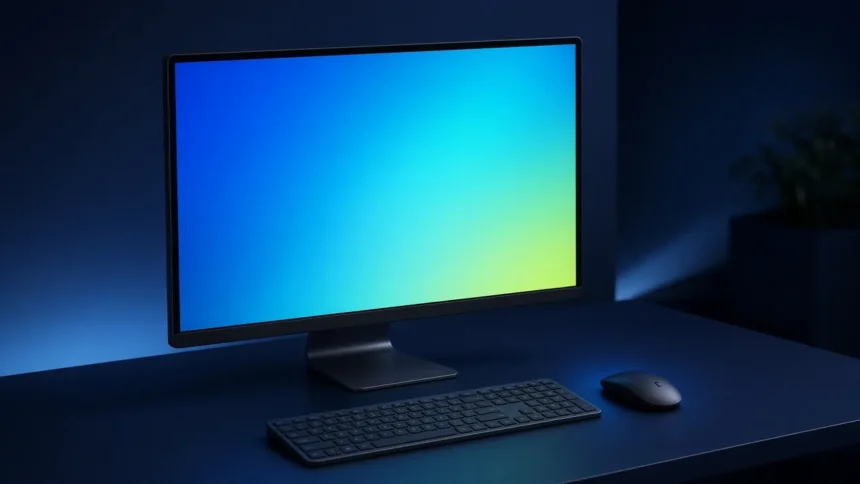
To choose a monitor, start with what you’ll use it for and how far you sit from it, then pick size, resolution, panel type and refresh rate in that order. For most desks, a 27-inch 1440p IPS monitor at 100-180Hz is the safe pick. A 24-inch 1080p screen suits tight budgets and esports, and 4K pays off on 27-32 inches for text and editing.
Key takeaway: pixel density and panel quality decide how a monitor looks more than the headline resolution.
Pick by use first
Find the row closest to how you’ll spend most hours at the screen. The sections below explain each column.
| Main use | Size | Resolution | Panel | Refresh rate |
|---|---|---|---|---|
| Study, office, browsing | 24-27 inch | 1080p (24) or 1440p (27) | IPS | 75-100Hz |
| Coding and spreadsheets | 27-32 inch | 1440p or 4K | IPS | 60-144Hz |
| Competitive gaming (Valorant, BGMI on PC, CS2) | 24-27 inch | 1080p or 1440p | Fast IPS or OLED | 240Hz or more |
| Story games and mixed use | 27 inch | 1440p | IPS, VA or OLED | 144-180Hz |
| Photo and video editing | 27-32 inch | 4K | IPS with factory calibration, or OLED | 60Hz or more |
| Mac users | 27 inch | 4K or 5K | IPS | 60Hz or more |
Size and desk distance
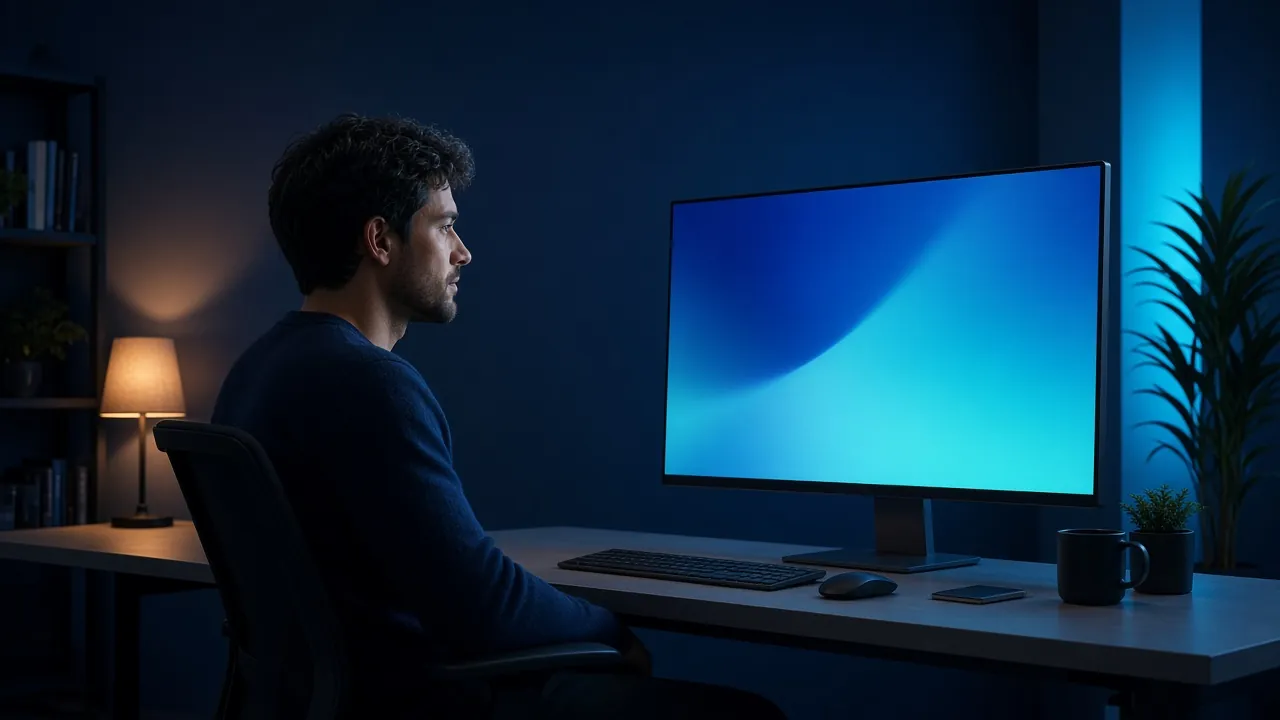
A monitor that’s too big for your desk means turning your head to read the corners. As a rule of thumb, sit roughly at arm’s length: about 50-75cm from a 24-inch screen, 60-90cm from a 27-inch and 70-105cm from a 32-inch.
Measure your desk depth before you buy. On a typical 60cm-deep Indian study table, 27 inches is about the comfortable limit unless you use a wall or monitor arm or stand to push the screen back.
Resolution and pixel density
Resolution only tells you how many pixels there are. Pixel density (pixels per inch, or PPI) tells you how sharp text looks at that size. A 27-inch 1080p screen has the same pixels as a 24-inch one, spread over a bigger area, so text looks soft.
| Size and resolution | Pixel density | How it looks at a desk |
|---|---|---|
| 24-inch 1080p | 92 PPI | Fine for gaming and budget office use |
| 27-inch 1080p | 82 PPI | Visible pixels and fuzzy text; we’d skip it |
| 24-inch 1440p | 122 PPI | Sharp, compact |
| 27-inch 1440p | 109 PPI | The sweet spot for most people |
| 32-inch 1440p | 92 PPI | Big but soft; better for games than text |
| 27-inch 4K | 163 PPI | Very sharp; needs 150% scaling |
| 32-inch 4K | 138 PPI | Sharp with lots of workspace |
| 34-inch ultrawide 3440×1440 | 110 PPI | Wide view for games and timelines |
Higher resolution also costs GPU power in games. A mid-range graphics card that runs 1080p at high frame rates may drop well below that at 4K, so match the resolution to your PC, not to what sounds premium.
Panel type: IPS, VA or OLED
The panel decides contrast, colour and viewing angles. Our IPS vs VA vs OLED explainer covers the technology; here’s the buying view.
| Panel | Best for | Watch out for |
|---|---|---|
| IPS | Most people: accurate colours, wide viewing angles | Greyish blacks in a dark room (IPS glow) |
| VA | Movies and dark games: deeper blacks | Smearing in fast, dark scenes on cheaper models |
| OLED | Contrast, HDR and very fast response | Higher price, burn-in risk with static content, lower full-screen brightness |
| TN | Very cheap esports screens | Poor colours and viewing angles; rarely worth it now |
If you leave a taskbar, code editor or spreadsheet on screen for eight hours a day, check the OLED warranty’s burn-in terms before you buy.
Refresh rate and response time
Refresh rate (Hz) is how many times a second the image updates. 60Hz is fine for office work, 100-120Hz makes scrolling feel smoother, and 144-180Hz is the gaming baseline. Our list of budget 144Hz gaming monitors starts there. Competitive players who already hit high frame rates can step up to 240Hz esports monitors.
Response time (ms) is how fast pixels change colour. The “1ms” on the box is often an MPRT figure measured with backlight strobing switched on, or a grey-to-grey number at the most aggressive overdrive setting, which can cause bright trails called overshoot. Reviews that measure motion at the default settings are a better guide.
💡 Expert tip: a high refresh rate only helps if your PC or console delivers matching frame rates. A PS5 tops out at 120Hz, so a 240Hz monitor adds nothing for console play.
HDR: what the labels mean
“HDR10 support” on a box only means the monitor accepts an HDR signal. It says nothing about how good HDR looks. VESA’s DisplayHDR certification criteria give a better guide:
- DisplayHDR 400: 400 nits peak and no local dimming required. Expect a modest step up from SDR at best.
- DisplayHDR 600: 600 nits peak with local dimming. This is where HDR starts to look different.
- DisplayHDR 1000 and above: needs a full-array or Mini-LED backlight with many dimming zones. Good HDR, priced accordingly.
- DisplayHDR True Black: the OLED tiers, rated for near-perfect blacks rather than very high brightness.
If HDR isn’t a priority, skip paying extra for an HDR 400 badge and put the money into a better panel or refresh rate. For how the HDR formats themselves differ, see HDR10 vs Dolby Vision explained.
Ports and connections
- DisplayPort: the best choice for high-refresh PC gaming.
- HDMI 2.1: needed for 4K at 120Hz from a PS5 or Xbox Series X.
- USB-C with power delivery: one cable for video, data and laptop charging. Check that the wattage (65W or more) covers your laptop.
- Built-in USB hub or KVM: handy if you switch between a work laptop and a personal PC.
Cable and port versions trip up a lot of buyers. Our guide to HDMI vs DisplayPort vs USB-C shows which one to use for each setup.
Flat, curved or ultrawide
A curve helps on 32-inch and wider screens because the edges sit closer to your eyes. On a 24-inch it makes little difference. Ultrawides (21:9) suit racing games, video timelines and side-by-side windows, but some games and most video calls show black bars. Our picks of curved monitors worth buying cover the good ones.
Stand, ergonomics and eye comfort
A height-adjustable stand lets you set the top of the screen at eye level, which helps your neck more than any spec. If the stand only tilts, check for a VESA 100×100 mount so you can add an arm later. Flicker-free backlighting and a matte coating help on long days, and a monitor light bar reduces glare at night.
Common mistakes when buying a monitor
- Buying a 27-inch 1080p monitor for office work and putting up with blurry text.
- Paying for 240Hz when your graphics card or console can’t reach those frame rates.
- Trusting the “1ms” and “HDR” stickers instead of reviews.
- Forgetting to check that the bundled cable supports the refresh rate you paid for.
- Choosing a screen too large for the desk depth.
Before you spend money: a quick checklist
- Measure your desk depth and how far you sit from the screen.
- Pick size and resolution together using the pixel density table.
- Choose the panel type by how you’ll use it (IPS for most people).
- Match the refresh rate to what your PC or console can deliver.
- Confirm the ports: DisplayPort for PC, HDMI 2.1 for consoles, USB-C for laptops.
- Check warranty length, the dead-pixel policy and (for OLED) burn-in cover.
How we researched this
This guide is research-based. We compared monitor spec sheets sold in India, VESA’s DisplayHDR criteria and measured review data from RTINGS’ resolution and size tests, and calculated pixel density ourselves. We haven’t lab-tested monitors for this article. Last checked: November 2026.
Frequently asked questions
How to choose a monitor size for my desk?
Sit roughly at arm’s length and match the size to that distance: 24 inches suits about 50-75cm, 27 inches about 60-90cm and 32 inches about 70-105cm. Measure your desk depth first; on a 60cm-deep table, 27 inches is about the comfortable limit.
Is 1440p worth it over 1080p?
Yes, on a 27-inch screen. 1440p gives about 109 pixels per inch, so text and game detail look much sharper than 27-inch 1080p. On a 24-inch screen, 1080p is still fine, especially for esports where high frame rates matter more.
Is a 4K monitor worth it for gaming?
Only with a powerful graphics card or for slower single-player games. 4K pushes about 2.25 times the pixels of 1440p, so frame rates drop sharply on mid-range GPUs. For most gamers, 27-inch 1440p at 144-180Hz is the better balance.
Is 60Hz enough for a monitor?
For office work, reading and video, 60Hz is fine. For gaming, aim for 144Hz or more; motion looks much smoother and input feels quicker. Even for work, a 100-120Hz screen makes scrolling more comfortable and often costs only a little extra.
IPS or VA: which is better for a first monitor?
IPS is the safer first pick: better colours, wider viewing angles and fewer motion problems. Choose VA if you mostly watch movies or play dark games in a dim room, where its deeper blacks help. Avoid cheap VA panels for fast competitive games.
Is an OLED monitor good for office work?
It can be, but think about burn-in. Static taskbars, code editors and spreadsheets for many hours a day raise the risk. If you buy one, use the panel-care features, hide static elements and check that the warranty covers burn-in.
Does HDR400 make a real difference?
Usually not much. DisplayHDR 400 needs only 400 nits and no local dimming, so most HDR400 screens look close to SDR. Visible HDR starts at DisplayHDR 600 with local dimming, or with OLED True Black tiers.
Which cable should I use for a 144Hz or 165Hz monitor?
Use DisplayPort from a PC graphics card where possible; it handles high refresh rates easily. HDMI 2.0 also works at 1080p and 1440p up to around 144Hz, and HDMI 2.1 is needed for 4K at 120Hz from consoles.
Our verdict
If you’re unsure how to choose a monitor, start with a 27-inch 1440p IPS screen at 144Hz or more; it suits work, study and gaming on most desks. Go 24-inch 1080p if budget or esports frame rates come first, and 4K at 27-32 inches if you spend your day on text or photos. Before you pay, measure your desk and check the ports and cable. Refresh rate and pixel response are easy to mix up; our explainer on refresh rate vs response time separates the two.