
Every time you take a photo, save a document, or back up your phone, it probably lands “in the cloud.” It’s a phrase we all use and few of us question — but where is the cloud, exactly? Is it really just floating out there, and is it safe to trust it with your family photos, tax documents, and private files?
The honest answer is more reassuring than most people expect, with a few important catches. This guide explains what cloud storage is and whether it’s safe, in plain English — how it actually works, who can see your files, the real risks (which usually aren’t the ones people worry about), and exactly how to keep your data secure. No jargon, no fear-mongering — just a clear picture so you can trust the cloud on your terms.
How we approached this: a research-based, brand-neutral explainer built on how major cloud providers actually secure data — encryption in transit and at rest, end-to-end (zero-knowledge) encryption, and the shared-responsibility model. There are no affiliate links here; the goal is to help you understand and safely use the cloud.
⚡ The short answer
Cloud storage means keeping your files on a company’s internet-connected servers instead of only on your own device, so you can reach them from anywhere. For most people it’s very safe — often safer than a laptop that can be lost, stolen, or die — because big providers encrypt your data and run serious security. The real risks are usually your side: a weak password, phishing, or no two-factor. And “safe” isn’t the same as “private” — with most providers, the company can technically access your files unless you use end-to-end (zero-knowledge) encryption.
What Is Cloud Storage?
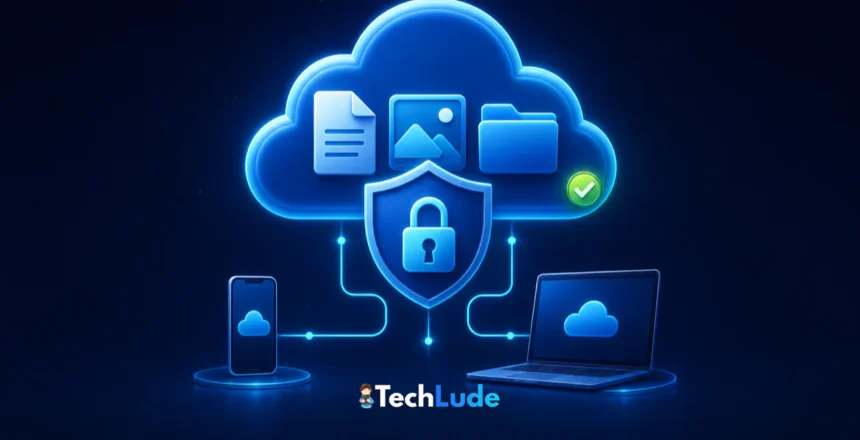
Cloud storage is a service that keeps your files — photos, documents, videos, backups — on remote servers owned by a provider, and lets you access them over the internet from any device. Instead of a file living only on your laptop’s drive, a copy lives in the provider’s data centre and syncs to your phone, tablet, and computer.
“The cloud” isn’t vague or magical: it’s real, physical computers in large, heavily guarded data centres around the world. When you drop a file into Google Drive, iCloud, OneDrive, or Dropbox, you’re copying it onto those machines and getting a private door to it from your own devices. That’s the whole idea — your files, available anywhere, without depending on one piece of hardware you carry around.
How Cloud Storage Works
Under the hood, a few things happen every time you save to the cloud:
- Upload: your file is sent over an encrypted internet connection to the provider’s servers.
- Storage & redundancy: the provider stores it and usually keeps multiple copies across different machines — often in different locations — so a single failed drive or data centre can’t lose your data.
- Sync & access: the file appears on all your linked devices, and any change you make syncs everywhere. You reach it through an app or a website, signed in to your account.
This redundancy is a big reason cloud storage can be more reliable than a single device: your files aren’t riding on one hard drive that could fail, get dropped, or be stolen.
Cloud Storage vs Local Storage vs Backup
One distinction saves people a lot of heartbreak: syncing is not the same as backing up. Cloud storage that syncs (like Drive or iCloud) mirrors your files — which is wonderful, until you accidentally delete something or ransomware encrypts your files, and that change instantly syncs everywhere, wiping the “safe” copy too.
A true backup keeps separate, versioned copies you can roll back to. The gold standard is the 3-2-1 rule: keep 3 copies of important data, on 2 different types of media, with 1 copy off-site (the cloud is perfect for that off-site copy). Cloud storage is a brilliant part of a backup strategy — just don’t assume that syncing alone means your data is backed up.
Is Cloud Storage Safe? The Honest Answer
For the vast majority of people, yes — cloud storage is safe, and often safer than the alternative. Major providers spend enormous sums on security that no individual could match: encrypted data, hardened data centres, 24/7 monitoring, and teams of security engineers. Statistically, you’re far more likely to lose files to a lost phone, a dead laptop, or a spilled coffee than to a breach of Google’s or Apple’s servers.
But “safe” has two sides — security (can someone steal or destroy your data?) and privacy (who can see it?). Providers are excellent at the first. The second depends on the type of encryption they use, which is where the nuance lives.
How Your Data Is Protected
Reputable cloud services protect your files with several layers:
- Encryption in transit: your data is scrambled (via TLS/HTTPS) as it travels between your device and the servers, so it can’t be read if intercepted.
- Encryption at rest: your stored files are encrypted on the provider’s disks, typically with strong AES-256 encryption, so raw drives are useless to a thief.
- Physical & operational security: data centres have tight physical access controls, redundancy, and constant monitoring for intrusions.
- Account protections: tools like two-factor authentication, passkeys, login alerts, and device management help keep your account locked down.
The Privacy Question: Who Can Actually See Your Files?
Here’s the part most guides skip. With “encryption at rest,” the provider encrypts your files — but the provider also holds the keys. That means Google, Dropbox, and OneDrive can technically access your files (to power search, previews, virus scanning, or in response to a legal request). Your data is protected from outsiders, but not fully private from the company.
The stronger option is end-to-end (zero-knowledge) encryption, where files are encrypted on your device before upload and only you hold the keys. The provider literally cannot read your files — even if hacked or legally compelled. A few notes on the landscape:
- Zero-knowledge providers like Proton Drive, Sync.com, and Tresorit make end-to-end encryption the default on all files.
- Apple iCloud offers optional Advanced Data Protection, which upgrades most categories (including iCloud Backup and Photos) to end-to-end encryption — though some data like Mail, Calendar, and Contacts stays non-E2E.
- Google Drive, Dropbox, and OneDrive encrypt your data but hold the keys by default, trading some privacy for features like fast search, previews, and easy collaboration.
💡 Rule of thumb: use zero-knowledge or end-to-end encryption for sensitive, private, or long-term archival files. Standard at-rest encryption is fine for everyday documents and collaboration where search, previews, and sharing matter more than absolute privacy.
The Real Risks (Usually Not the Provider)
When cloud accounts are compromised, it’s rarely because someone cracked the provider’s servers. It’s almost always one of these — and every one is something you can control:
- Weak or reused passwords — the number-one cause of account takeovers. One leaked password from another site can open your cloud.
- Phishing — a fake login page tricks you into handing over your credentials.
- No two-factor authentication — without a second factor, a stolen password is all an attacker needs.
- Oversharing links — a “anyone with the link” share can be forwarded, indexed, or leaked far beyond who you intended.
- Ransomware syncing — malware encrypts your local files and the damage syncs to the cloud, which is why versioned backups matter.
- Accidental deletion — you delete a file and the deletion syncs everywhere before you notice.
- Provider outages or shutdowns — rare, but a service can go down temporarily or a smaller one can close, so never rely on a single copy.
How to Keep Your Cloud Storage Safe
The good news: locking down your cloud is mostly about a handful of habits. Do these and you close off nearly every real-world risk:
- Use a strong, unique password for your cloud account — ideally from a password manager — and never reuse it elsewhere.
- Turn on two-factor authentication, or better, a passkey. This single step blocks the vast majority of account takeovers — see our guide to what a passkey is and how passkeys work.
- Learn to spot phishing — check the web address before typing your password, and never log in through links in unexpected emails.
- Enable end-to-end encryption where offered (like Apple’s Advanced Data Protection), or use a zero-knowledge provider for sensitive files.
- Manage your sharing links — set expiry dates and passwords, prefer sharing to specific people, and review what’s shared periodically.
- Keep a real backup — follow the 3-2-1 rule so a synced deletion or ransomware can’t wipe your only copy.
- Review connected apps and devices — remove old devices and third-party apps that still have access to your account.
Popular Cloud Storage Providers at a Glance
A quick, honest comparison of common options and how they handle privacy — features and free tiers change, so verify the current plan before choosing:
| Provider | Free storage | Encryption | End-to-end / zero-knowledge? | Best for |
|---|---|---|---|---|
| Google Drive | ~15GB | In transit + at rest (AES-256) | No — Google holds the keys | Google apps, docs, collaboration |
| Apple iCloud | ~5GB | In transit + at rest; optional Advanced Data Protection | Optional — ADP makes most data E2E | Apple ecosystem users |
| Microsoft OneDrive | ~5GB | In transit + at rest; Personal Vault | No by default (Vault adds protection) | Windows & Microsoft 365 |
| Dropbox | ~2GB | In transit + at rest (AES-256) | No | Cross-platform sync & sharing |
| Proton Drive / Sync.com / Tresorit | ~2–5GB | AES-256, zero-knowledge | Yes — provider can’t read your files | Privacy-first & sensitive data |
When to Trust the Cloud — and When to Be Careful
Cloud storage is genuinely excellent for most everyday needs: your photo library, documents you work on across devices, sharing files with family or colleagues, and as the off-site copy in a backup plan. For all of that, a mainstream provider with 2FA is a safe, sensible choice.
Be more deliberate with highly sensitive data — legal, medical, financial records, or anything you’d never want a company or attacker to read. For those, prefer end-to-end/zero-knowledge encryption (or encrypt the files yourself before uploading). And for anything irreplaceable, don’t let the cloud be your only copy — keep a separate backup as well.
Common Myths About Cloud Storage
- “The cloud isn’t really secure.” Major providers are more secure than almost any personal device — the weak link is usually your password, not their servers.
- “If it’s in the cloud, it’s backed up.” Not necessarily — syncing mirrors changes, including deletions. A backup keeps recoverable, versioned copies.
- “Encrypted means private.” Not always — with at-rest encryption the provider still holds the keys. Only end-to-end/zero-knowledge encryption keeps files private from the provider.
- “Free cloud storage is unsafe.” Free tiers from reputable providers use the same security as paid ones; just mind the storage limits and privacy model.
- “Hackers can easily get into my cloud.” Not if you use a strong, unique password and two-factor or a passkey — that combination stops the overwhelming majority of attacks.
Frequently Asked Questions
Is cloud storage safe?
Yes, for most people it’s very safe — often safer than a single laptop or phone that can be lost, stolen, or fail. Major providers encrypt your data and run serious security. The main risks come from your side, like a weak password or phishing, which strong passwords and two-factor authentication largely eliminate.
Can hackers access my cloud storage?
It’s rarely the provider that gets breached — it’s individual accounts, almost always through weak or reused passwords, phishing, or missing two-factor authentication. If you use a strong, unique password and turn on 2FA or a passkey, you block the overwhelming majority of account takeover attempts.
Can Google, Apple, or Dropbox see my files?
With standard at-rest encryption, yes — the provider holds the encryption keys and can technically access your files for features like search, previews, or legal requests. To keep files private even from the provider, use end-to-end (zero-knowledge) encryption, such as Apple’s Advanced Data Protection or a provider like Proton Drive.
What’s the difference between at-rest and end-to-end encryption?
At-rest encryption scrambles your files on the provider’s servers, but the provider keeps the keys and can read your data. End-to-end (zero-knowledge) encryption encrypts files on your device before upload, and only you hold the keys — so the provider literally cannot read them, even if hacked or legally compelled.
Is cloud storage safer than storing files on my computer?
For most people, yes. A single computer can be lost, stolen, damaged, or suffer a drive failure, taking your only copy with it. Reputable cloud providers keep encrypted, redundant copies across multiple machines and locations, so your data survives hardware problems — as long as your account itself is well secured.
Is cloud storage the same as a backup?
No. Syncing services mirror your files, so if you delete something or ransomware strikes, that change syncs everywhere, including your cloud copy. A real backup keeps separate, versioned copies you can restore. Use the 3-2-1 rule: three copies, on two types of media, with one off-site — the cloud is great for that off-site copy.
What happens to my files if the provider has an outage or shuts down?
Outages are usually brief and your files return when service resumes. A provider fully shutting down is rare among major names, but smaller services can close. Either way, never keep your only copy in one place — maintain a separate backup so a temporary outage or a service closing can’t leave you stranded.
How can I make my cloud storage more secure?
Use a strong, unique password and turn on two-factor authentication or a passkey — that alone stops most attacks. Then enable end-to-end encryption where offered, be cautious with sharing links, watch for phishing, review connected apps and devices, and keep a separate backup of anything irreplaceable.
Which cloud storage is the most private and secure?
For maximum privacy, zero-knowledge providers like Proton Drive, Sync.com, and Tresorit encrypt everything so even they can’t read your files. Apple iCloud with Advanced Data Protection is a strong option for Apple users. Mainstream services like Google Drive and OneDrive are very secure but keep the keys, trading some privacy for features.
Is free cloud storage safe to use?
Generally yes — free tiers from reputable providers use the same underlying security and encryption as their paid plans. The differences are storage limits and, sometimes, the privacy model. Just apply the same precautions: a strong password, two-factor authentication, and end-to-end encryption for anything sensitive.
The Bottom Line
So, is cloud storage safe? For almost everyone, the answer is a confident yes — it’s a reliable, well-secured, and often safer home for your files than any single device you own. The cloud isn’t a mysterious risk floating overhead; it’s a set of heavily protected data centres, and the biggest weak point isn’t their security — it’s the password and habits guarding your account.
Get the basics right — a strong, unique password, two-factor or a passkey, end-to-end encryption for your most sensitive files, and a real backup for anything irreplaceable — and you get all the convenience of the cloud with very little to worry about. Understand the difference between “secure” and “private,” choose the right tool for the right data, and the cloud becomes exactly what it should be: a safe, effortless place for your digital life.
Further reading: your cloud is only as safe as the account guarding it — see what a passkey is and how passkeys work to lock it down, and the hidden costs of buying a cheap smartphone for why ongoing security updates matter so much.