


Quick, how many passwords do you have? Fifty? A hundred? And how many of them are some version of the same one you’ve used since college? Passwords are the weakest, most annoying part of modern security — we forget them, reuse them, and hand them to fake sites without realising. Every big data breach you read about is really a story about stolen passwords.
Passkeys are the technology built to end all of that — a way to sign in with just your face, fingerprint, or device PIN, with nothing to type, forget, or be phished for. Apple, Google, and Microsoft are all pushing them hard, and more sites support them every month. But what is a passkey, exactly, and how do passkeys actually work under the hood? This guide explains it in plain English — no jargon, no hype, just a clear picture of the login method that’s quietly replacing the password.
How we approached this: a research-based, brand-neutral explainer built on the open FIDO Alliance and W3C WebAuthn standards that passkeys are based on, and how Apple, Google, and Microsoft actually implement them. There are no affiliate links here — the goal is to help you understand and use passkeys with confidence.
⚡ The short answer
A passkey is a modern replacement for a password that lets you sign in with your device’s face, fingerprint, or PIN. Instead of a secret you type (and can leak), it uses a pair of cryptographic keys: a private key that never leaves your device and a public key stored by the website. There’s nothing to remember, nothing for a hacker to steal in a breach, and it can’t be phished — which makes it both easier and far safer than a password.
What Is a Passkey?
A passkey is a digital credential that replaces the password for a given website or app. Rather than a secret word you memorise and type, it’s a cryptographic key stored securely on your device (your phone, laptop, or a password manager) and unlocked the same way you unlock your phone — with Face ID, a fingerprint, or your device PIN.
Technically, passkeys are built on open industry standards called FIDO2 and WebAuthn, developed by the FIDO Alliance (whose members include Apple, Google, and Microsoft) and the W3C. That’s the important bit: passkeys aren’t one company’s gimmick — they’re a shared, cross-platform standard designed to make passwords obsolete. When you “create a passkey” for a site, you’re setting up this key-based login instead of a typed password.
Passwords vs Passkeys: Why Passkeys Are Safer
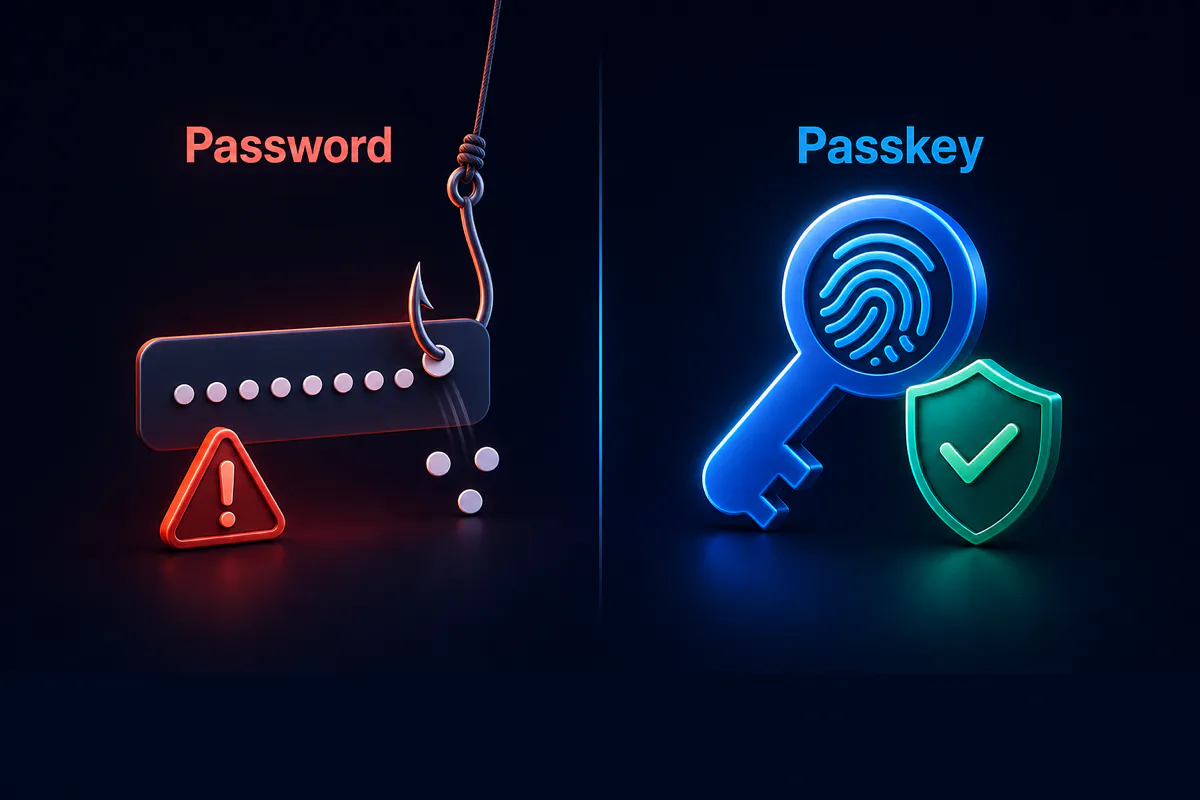
To see why passkeys matter, look at everything that goes wrong with passwords — and how passkeys sidestep each problem:
| Passwords | Passkeys | |
|---|---|---|
| What it is | A secret you type | A cryptographic key on your device |
| You have to remember it | Yes (so people reuse them) | No — it’s stored and synced for you |
| Can be phished | Yes — you can be tricked into typing it on a fake site | No — it’s tied to the real website and won’t work on a fake one |
| Leaked in a data breach | Yes — servers store password data | No — the site only holds a public key, useless to a thief |
| Reused across sites | Commonly | Never — each site gets a unique key |
| How you sign in | Type a password (+ maybe an OTP) | Face, fingerprint, or device PIN |
The single biggest win is phishing resistance. A passkey is mathematically tied to the exact website it was created for, so if you land on a convincing fake of your bank’s login page, your passkey simply won’t offer to sign you in — there’s nothing to trick out of you. And because the website never stores a secret you could reuse, a breach of that site can’t leak a working credential. This is exactly the kind of quiet, real-world security that outlasts a device — the same reason software and security support matters so much when buying a phone.
How Passkeys Work: The Public and Private Key Pair
Here’s the mechanism, in plain English. When you create a passkey, your device generates a matched pair of keys using public-key cryptography:
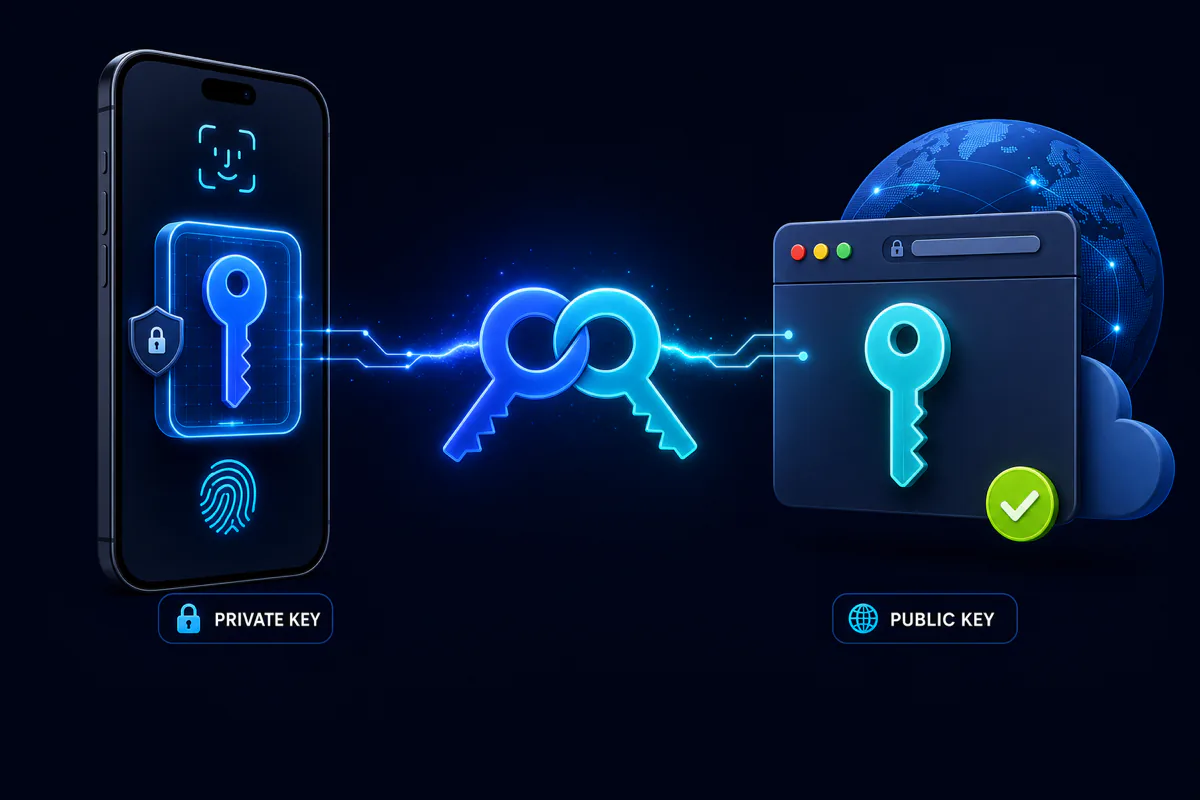
- The private key stays locked on your device, protected by secure hardware (like the Secure Enclave on iPhones or a TPM chip on PCs). It never leaves your device and is never sent to the website. It can only be used after you unlock it with your face, fingerprint, or PIN.
- The public key is handed to the website and stored on its servers. As the name suggests, it’s not a secret — it’s useless on its own. It can only verify signatures made by your private key; it can’t create them.
Think of it like a wax seal. The website has a copy of your unique seal’s imprint (the public key) and can recognise it, but only you hold the actual stamp (the private key) that makes it. Anyone can check the seal; only you can produce it. That asymmetry is what makes the whole system secure.
💡 Key point: your fingerprint or face is never sent to the website. Biometrics only unlock the private key locally on your device — the site just receives cryptographic proof, never your actual biometric data.
The Passkey Sign-In Flow, Step by Step
So what actually happens when you tap “Sign in with a passkey”? It’s a quick back-and-forth called a challenge–response:
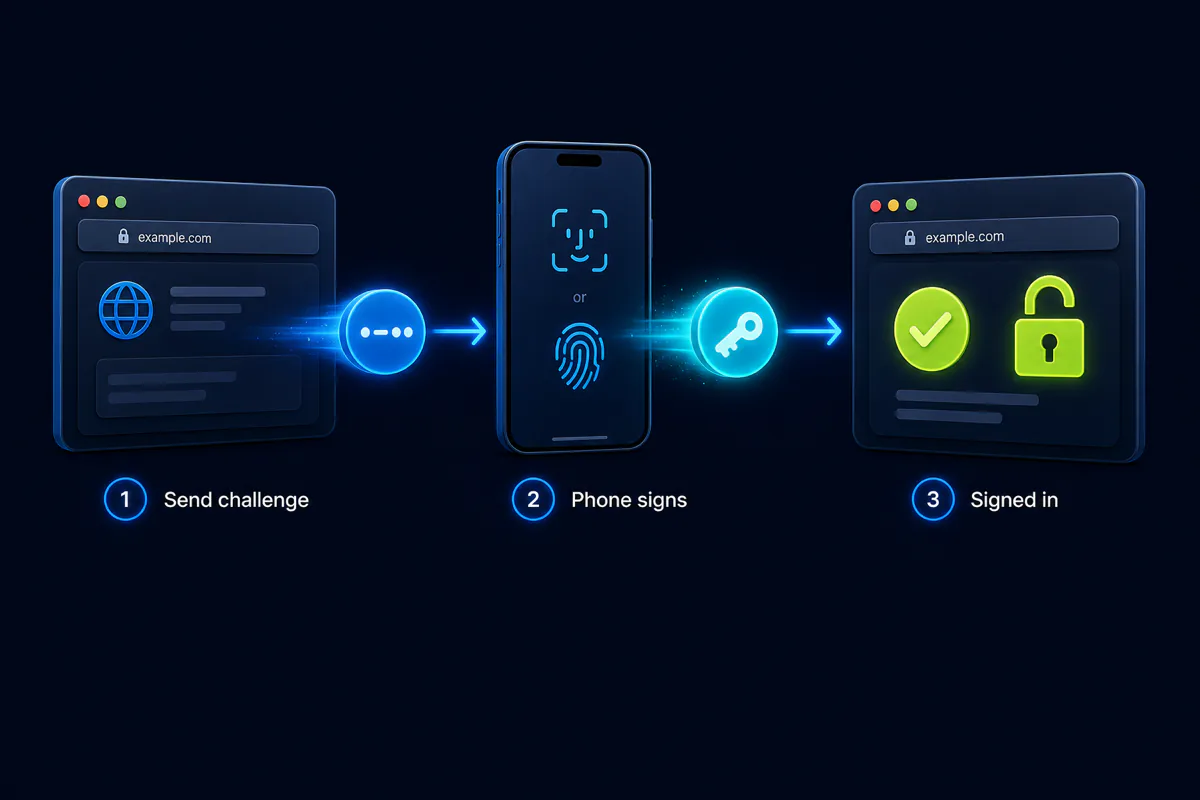
- The website sends a challenge. When you go to log in, the site sends your device a random, one-time piece of data to sign.
- Your device signs it — after you approve. You confirm with Face ID, a fingerprint, or your PIN, which unlocks the private key. The device uses that key to create a unique digital signature of the challenge. The key itself never leaves the device.
- The website verifies and lets you in. The site uses your stored public key to check that the signature is genuine and made for its domain. If it matches, you’re signed in — no password typed, nothing to intercept.
The whole exchange takes a second and feels like nothing more than unlocking your phone. Because the challenge is random and one-time, even if someone captured the exchange, they couldn’t reuse it — and because your device checks the site’s identity, it won’t sign a challenge from an impostor site.
Where Passkeys Are Stored and Synced
A common worry is: “If my passkey lives on my phone, what happens when I get a new phone?” The answer is that most passkeys today are synced securely across your devices through your platform or password manager:
- Apple syncs passkeys through iCloud Keychain, so they follow you across iPhone, iPad, and Mac, end-to-end encrypted.
- Google syncs them through Google Password Manager across Android and Chrome.
- Microsoft supports passkeys via Windows Hello and your Microsoft account.
- Password managers like 1Password, Bitwarden, and Dashlane can store and sync passkeys across platforms — handy if you mix Apple, Android, and Windows.
There are also device-bound passkeys (which stay on a single device or a physical security key like a YubiKey) for the highest-security scenarios. For most people, synced passkeys are the sweet spot: you keep access even if you lose a device, as long as you can get back into your platform account.
How to Set Up and Use a Passkey
Creating a passkey is usually a two-tap affair. On a website or app that supports them, look in the security or account settings for “Create a passkey” or “Set up passwordless sign-in,” then confirm with your biometric. From then on, signing in just uses your face or fingerprint. A few practical notes:
- You can keep your password too — adding a passkey usually doesn’t delete your old password; it just gives you a faster, safer way in.
- Signing in on someone else’s device works through a QR code: the site shows a code, you scan it with your phone, approve with biometrics, and your phone signs in for that session over a secure Bluetooth-verified link. Your passkey never transfers to the other device.
- Start with your most important accounts — email, banking, and your Apple/Google/Microsoft account — where phishing resistance matters most.
The Benefits of Passkeys
- Phishing-resistant by design — they won’t work on fake sites, closing off the most common attack.
- Nothing to leak in a breach — sites store only a public key, not a reusable secret.
- Nothing to remember or type — no more forgotten passwords or password-reset loops.
- Faster sign-ins — a glance or a touch instead of typing and waiting for an OTP.
- Built-in two-factor strength — a passkey combines something you have (your device) with something you are (your biometric) in one step.
The Honest Limitations and Catches
Passkeys are excellent, but they’re not magic, and it’s worth going in clear-eyed:
- Account recovery still matters. Synced passkeys survive a lost phone, but if you lose access to your whole platform account (Apple/Google/Microsoft), recovery depends on the backups and recovery options you set up. Keep those current.
- Ecosystem friction. Moving passkeys between, say, Apple and Google has been clumsy historically. Cross-platform transfer standards are arriving, and a third-party password manager sidesteps the issue by working everywhere.
- Not every site supports them yet. Adoption is growing fast but isn’t universal, so you’ll still juggle passwords for a while — a good password manager helps bridge the gap.
- Shared and public devices need a little thought — you generally don’t create passkeys on devices that aren’t yours; you use the QR cross-device flow instead.
Passkeys vs 2FA and Password Managers
These often get confused, so here’s how they relate. A password manager stores and fills your passwords (and increasingly your passkeys) — it makes passwords safer but doesn’t remove them. Two-factor authentication (2FA) adds a second step, like an OTP code, on top of your password. A passkey effectively rolls both jobs into one: it replaces the password entirely and is inherently multi-factor (your device plus your biometric), so for a passkey-enabled login you usually don’t need a separate OTP at all. In short, passkeys aim to make the password-plus-OTP dance unnecessary — while password managers remain useful for the many sites that haven’t caught up yet.
Common Myths and Mistakes
- “The website gets my fingerprint.” No — your biometric never leaves your device; it only unlocks the local private key.
- “If I lose my phone, I’m locked out forever.” Not with synced passkeys — they’re recoverable through your platform account or password manager.
- “Passkeys are just another password.” No — there’s no shared secret to type, reuse, or leak; the mechanism is fundamentally different.
- “Passkeys are less secure because they’re so easy.” The opposite — the convenience comes from the stronger cryptography, not at the expense of it.
- “I have to delete my passwords.” You don’t have to; you can add passkeys alongside existing passwords and switch over gradually.
Frequently Asked Questions
What is a passkey in simple terms?
A passkey is a replacement for a password that lets you sign in with your face, fingerprint, or device PIN. Instead of a secret you type, it uses a cryptographic key stored safely on your device, so there’s nothing to remember, nothing to type, and nothing for a hacker to steal or phish.
How do passkeys actually work?
When you create a passkey, your device makes a pair of keys: a private key that stays locked on your device and a public key stored by the website. To sign in, the site sends a challenge, your device signs it with the private key after you approve with a biometric, and the site verifies it with the public key.
Are passkeys safer than passwords?
Yes, significantly. Passkeys can’t be phished because they’re tied to the real website, can’t be leaked in a data breach because the site only stores a public key, and are never reused across sites. They also can’t be guessed or typed on a fake page, which removes the most common ways accounts get hacked.
Does the website get my fingerprint or face?
No. Your biometric data never leaves your device. Face ID, Touch ID, or a fingerprint only unlocks the private key stored locally; the website only ever receives cryptographic proof that you approved the sign-in, never your actual fingerprint or face.
What happens to my passkeys if I lose my phone?
With synced passkeys — the default on Apple, Google, and Microsoft — your passkeys are backed up and restored when you sign back into your platform account on a new device. Just make sure your account recovery options are set up, since regaining access depends on getting back into that account.
Can I use a passkey across different devices and brands?
Yes. Passkeys sync within an ecosystem (iCloud Keychain for Apple, Google Password Manager for Android/Chrome), and you can sign in on another device using a QR-code flow. To move smoothly between Apple, Android, and Windows, a cross-platform password manager like 1Password or Bitwarden can store your passkeys everywhere.
Do passkeys replace two-factor authentication?
Largely, yes. A passkey is inherently multi-factor — it combines something you have (your device) with something you are (your biometric) — so for a passkey sign-in you usually don’t need a separate OTP code. It effectively replaces both the password and the second-factor step in one action.
Do I have to delete my password to use a passkey?
No. Adding a passkey doesn’t remove your existing password; it just gives you a faster, safer way to sign in. Many people keep the password as a fallback while they switch important accounts over to passkeys, then remove it later once they’re comfortable.
Which accounts should I set up passkeys for first?
Start with your highest-value accounts — email, online banking, and your Apple, Google, or Microsoft account — because those are the biggest phishing targets and often control access to everything else. Then add passkeys to other sites as they offer support.
Are passkeys free, and do I need special hardware?
Passkeys are free and built into modern phones, tablets, and computers — you don’t need to buy anything. Any device with Face ID, a fingerprint reader, or a screen-lock PIN can create and use them. Physical security keys exist for extra-high-security needs, but they’re optional.
The Bottom Line
Passkeys are that rare upgrade that’s both easier and safer. By swapping a secret you type for a cryptographic key your device holds, they quietly remove the reasons accounts get hacked — phishing, reused passwords, and leaked databases — while turning sign-in into a glance or a touch. Once you understand the simple idea behind them (a private key that stays with you, a public key the site can only verify), the “magic” is just good cryptography doing its job.
You don’t have to switch everything overnight. Add a passkey to your most important accounts first, keep a password manager for the sites that lag behind, and let the rest catch up. The era of remembering — and leaking — passwords is ending, and passkeys are what comes next.
Further reading: security is a big part of what keeps a device worth owning — see what makes a laptop good for long-term use and the hidden costs of buying a cheap smartphone, where software and security support decide how safe your tech stays over time.