
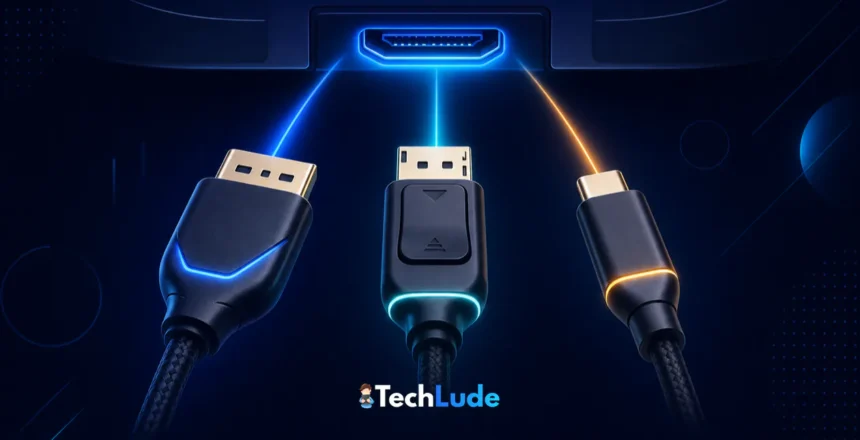
Three ports, three names that get thrown around like they’re interchangeable: HDMI, DisplayPort, and USB-C. If you’ve ever stood behind a monitor wondering which cable to plug in — or watched your shiny 144Hz display run at a stuttery 60Hz — you know the confusion is real.
So let’s separate the useful from the marketing noise. This guide explains what HDMI vs DisplayPort vs USB-C actually means, how they differ, and — the part that matters — which one you should use for gaming, a TV, a laptop, or a multi-monitor setup. No jargon for its own sake, just a clear answer.
How we approached this: a research-based explainer cross-checked against the official HDMI, VESA (DisplayPort), and USB-IF specifications. There are no affiliate links here — the goal is to help you pick the right port and cable, not to sell you one.
⚡ The short answer
Use HDMI for TVs, consoles, and simple plug-and-play. Use DisplayPort for high-refresh PC gaming and multi-monitor setups. Use USB-C when you want one cable to carry video, data, and power — especially from a laptop. All three can do 4K; the real differences are refresh rates, extra features, and convenience.
HDMI vs DisplayPort vs USB-C: The 30-Second Difference
Here’s the mental model. HDMI is the universal audio-video standard — it’s on every TV, console, and soundbar. DisplayPort is the PC and monitor performance standard, built for high refresh rates and multiple displays. USB-C isn’t a video standard at all — it’s a connector shape that can carry DisplayPort video plus data and power in a single reversible cable. Now the details:
| Feature | HDMI | DisplayPort | USB-C |
|---|---|---|---|
| Latest version | 2.2 — 96 Gbps (2025) | 2.1 — up to 80 Gbps | USB4 v2 / TB5 — up to 80 Gbps |
| Common today | 2.1 — 48 Gbps | 1.4 — 32.4 Gbps | DP Alt Mode / TB4 — 40 Gbps |
| Typical max (current) | 4K @ 120Hz, 8K @ 60Hz | 4K @ 240Hz, 8K @ 60Hz | 4K @ 120Hz+ (mode-dependent) |
| Best for | TVs, consoles, home theatre | PC gaming, high refresh, multi-monitor | Laptops, docks, one-cable setups |
| Found on | TVs, consoles, GPUs, monitors | GPUs, gaming monitors, PCs | Laptops, phones, tablets, monitors |
| Carries power | No | No | Yes — up to 240W |
| Carries USB data | No | No | Yes |
| Multi-monitor daisy-chain | No | Yes (MST) | Yes (via DisplayPort) |
| Audio + audio return | Yes (eARC) | Yes | Yes |
What Is HDMI? (The Universal AV Standard)
HDMI (High-Definition Multimedia Interface) is the connector you’ll find on virtually every TV, games console, soundbar, and streaming box. It carries video and audio down one cable and “just works,” which is why it dominates the living room. What matters is the version:
- HDMI 2.0 (18 Gbps): handles 4K at 60Hz — fine for everyday TV and older devices.
- HDMI 2.1 (48 Gbps): the one to have today — 4K at 120Hz, 8K at 60Hz, plus VRR, ALLM, and eARC. This is what makes a PS5 or Xbox Series X shine on a modern TV.
- HDMI 2.2 (96 Gbps, released mid-2025): the newest spec, reaching 8K/12K and adding better A/V sync — but you need a new “Ultra96” cable, and it’s overkill for almost everyone right now.
Best for: TVs, consoles, soundbars (thanks to eARC), and simple plug-and-play. The catch: on PCs it historically trailed DisplayPort for very high refresh rates, though HDMI 2.1 closed most of that gap.
What Is DisplayPort? (The PC Gamer’s Port)
DisplayPort, developed by VESA, is the standard built for computers and monitors rather than TVs. It’s the port PC gamers reach for, because it typically pushes higher refresh rates and has the most reliable support for variable-refresh tech.
- DisplayPort 1.4 (32.4 Gbps): the common version — 4K at 120Hz (with DSC) and high-refresh 1440p, with G-Sync and FreeSync support.
- DisplayPort 2.1 (UHBR20, up to 80 Gbps): on the newest GPUs and monitors — 4K at 240Hz and 8K, ready for the fastest displays.
- Daisy-chaining (MST): DisplayPort can drive multiple monitors from a single port, which HDMI can’t.
Best for: PC gaming monitors, high refresh rates, adaptive sync, and multi-monitor setups. The catch: you’ll rarely find it on a TV, and it’s less common on ultra-thin laptops (which lean on USB-C instead).
What Is USB-C? (One Cable to Do It All)
Here’s the key thing people miss: USB-C is a connector shape, not a video standard. That little reversible oval can carry several things at once — video via DisplayPort Alt Mode, regular USB data, and power via USB Power Delivery (up to 240W). Thunderbolt 3/4 and USB4 also run over the USB-C connector.
- Video: when a USB-C port supports DisplayPort Alt Mode, the video it sends is literally a DisplayPort signal in disguise.
- Power + data: the same cable can charge your laptop and connect your peripherals — the reason a single USB-C cable can replace three.
- Thunderbolt 4 / USB4 run at 40 Gbps; the newest Thunderbolt 5 / USB4 v2 reach up to 80 Gbps, matching DisplayPort 2.1.
💡 Watch out: not every USB-C port can output video — it must support DisplayPort Alt Mode or Thunderbolt. And USB-C cables vary wildly: some are charge-only, some cap out on speed. Always check what the specific port and cable actually support, not just the shape.
HDMI vs DisplayPort: Which Is Better for Gaming?
It depends on what you’re gaming on. For a console (PS5, Xbox Series X), the choice is made for you — they only have HDMI, so an HDMI 2.1 connection to a compatible TV is exactly right. For a PC gaming monitor, DisplayPort is usually the better pick: it tends to reach higher refresh rates and offers the most dependable G-Sync/FreeSync support. If both your GPU and monitor have DisplayPort 2.1, that’s the top choice for high-refresh 4K.
DisplayPort vs USB-C: Aren’t They the Same?
Almost — and that surprises people. When USB-C sends video through DisplayPort Alt Mode, it is a DisplayPort signal; USB-C just adds power and data on top. So for a laptop on a desk, a single USB-C or Thunderbolt cable to a monitor or dock is the cleanest setup: one cable for display, charging, and peripherals. For a desktop tower, plain DisplayPort is the simplest, most direct route.
Which Should You Use? A Quick Guide by Scenario
- Console gaming (PS5 / Xbox): HDMI 2.1 — consoles have no DisplayPort, and 2.1 unlocks 4K 120Hz and VRR.
- 4K TV & home theatre: HDMI (2.1 for 4K 120Hz, or 2.2 if you’re future-proofing), with eARC for a soundbar.
- PC gaming at high refresh (1440p/4K, 144–240Hz): DisplayPort (2.1 if available) for the refresh rate and adaptive sync.
- Laptop to one monitor + charging: USB-C with DisplayPort Alt Mode, or Thunderbolt — one cable does video, data, and power.
- Multiple monitors: DisplayPort daisy-chaining (MST), or a USB-C/Thunderbolt dock.
- MacBook / ultra-thin laptop: USB-C / Thunderbolt, usually via a dock or adapter — often the only port you get.
- Everyday office work: whatever your device and monitor share; HDMI is the most universal fallback.
Cables Matter More Than You Think (But Don’t Overpay)
The port is only half the story — the cable has to support the bandwidth. An HDMI 2.1 signal needs a certified “Ultra High Speed” cable; HDMI 2.2 needs the new “Ultra96.” DisplayPort has certified DP40 and DP80 cables. USB-C is the wild west: many cables are charge-only or speed-limited, and length affects performance.
But here’s the honest part: for a digital signal, a correctly certified budget cable performs identically to a pricey “premium” one — you’re paying for certification and build quality, not a better picture. Don’t let a shop upsell you a ₹3,000 HDMI cable when a certified ₹500 one carries the exact same signal. (We dug into this in why expensive tech is not always premium tech.)
Common Myths and Mistakes
- “HDMI and DisplayPort are interchangeable.” They’re different connectors — you need an active adapter to convert between them, not just a plug swap.
- “Any USB-C port can output video.” Only if it supports DisplayPort Alt Mode or Thunderbolt. Many don’t.
- “A pricier cable gives a better picture.” For digital signals, certification is what matters — not price.
- “My 144Hz monitor runs at 60Hz, so it’s broken.” Usually it’s the wrong cable/port or an unset refresh rate in display settings — not a fault.
- “Any old HDMI cable does 4K 120Hz.” No — you need an HDMI 2.1 “Ultra High Speed” certified cable for that.
Frequently Asked Questions
Is HDMI or DisplayPort better for gaming?
It depends on the device. Consoles like the PS5 and Xbox Series X only have HDMI, so HDMI 2.1 is the answer there. For a PC gaming monitor, DisplayPort is usually better — it tends to reach higher refresh rates and has the most reliable G-Sync and FreeSync support.
Is USB-C the same as DisplayPort?
Not exactly, but they’re closely related. USB-C is a connector shape; when it outputs video through DisplayPort Alt Mode, that video is literally a DisplayPort signal. USB-C simply adds power and USB data on top, letting one cable handle display, charging, and peripherals together.
Can I convert HDMI to DisplayPort or vice versa?
Yes, but you usually need an active adapter, not a simple passive plug, because the two use different signalling. Check the adapter’s direction (HDMI-to-DP is different from DP-to-HDMI) and its maximum supported resolution and refresh rate before buying.
Which port supports 4K at 120Hz or 144Hz?
HDMI 2.1 (48 Gbps) handles 4K at 120Hz, and DisplayPort 1.4 and 2.1 can reach 4K at 120Hz and beyond, with DisplayPort 2.1 pushing to 4K 240Hz. You also need a certified cable and a source device capable of outputting that resolution and refresh rate.
Can one USB-C cable really carry video, data, and power?
Yes — that’s USB-C’s biggest advantage. A capable USB-C or Thunderbolt cable can send DisplayPort video, transfer USB data, and deliver up to 240W of power simultaneously. It’s why a single cable can connect a laptop to a monitor while charging it and running peripherals.
Do I need an expensive HDMI or DisplayPort cable?
No. For digital signals, a correctly certified budget cable delivers the exact same picture as a costly one — you’re paying for certification and build, not image quality. Just match the certification to your need: “Ultra High Speed” for HDMI 2.1, or DP40/DP80 for DisplayPort.
Which cable should I use for a PS5 or Xbox Series X?
Use HDMI, specifically an HDMI 2.1 “Ultra High Speed” certified cable into an HDMI 2.1 port on your TV. That unlocks 4K at 120Hz and VRR. Consoles don’t have DisplayPort, so HDMI is your only option — just make sure the cable and TV port are 2.1.
Why is my 144Hz monitor only running at 60Hz?
Usually it’s not broken. Common causes are using a cable or port that can’t carry the bandwidth (like an old HDMI cable), or simply not selecting the higher refresh rate in your operating system’s display settings. Switch to DisplayPort or a certified cable and set the refresh rate manually.
What is DisplayPort Alt Mode on USB-C?
DisplayPort Alt Mode is the feature that lets a USB-C port output real DisplayPort video. When your laptop’s USB-C supports it, you can connect to a monitor over USB-C and get a full DisplayPort signal — plus power and data on the same cable. Not every USB-C port includes it.
Is HDMI 2.2 worth it, or is HDMI 2.1 enough?
For almost everyone, HDMI 2.1 is plenty — it already handles 4K 120Hz and 8K 60Hz. HDMI 2.2 (96 Gbps) targets 8K and 12K and needs a new Ultra96 cable, so it’s future-proofing for high-end setups rather than something most people need today.
The Bottom Line
There’s no single winner in HDMI vs DisplayPort vs USB-C — the right port depends on what you’re plugging into. Reach for HDMI for TVs, consoles, and anything that should just work; DisplayPort for high-refresh PC gaming and multiple monitors; and USB-C when you want one tidy cable to carry video, power, and data from a laptop (remember, it’s sending DisplayPort under the hood anyway).
Match the port to the job, use a properly certified cable for the bandwidth you need, and don’t let anyone talk you into an overpriced one. Get those three right and you’ll never stare at the back of a monitor in confusion again.
Further reading: see why expensive tech is not always premium tech for the cable-pricing myth, and what makes a laptop good for long-term use for why modern ports like USB-C and Thunderbolt help future-proof a laptop.